
How to Edit Text in a Screenshot Online (Free, No Photoshop)
To edit text in a screenshot, upload it to PhoText, click the text you want to change, and type the new text. The AI recognizes the original font, size, and color, erases the old text, and restores the background — so the edit is invisible. The whole process takes under a minute and runs in your browser.
This guide walks through the exact steps, plus tips for tricky cases like small UI text and colored backgrounds.
Why screenshots are easy to edit
Screenshots are actually the best-case scenario for text editing: the text is rendered by software (not photographed), backgrounds are usually flat colors, and fonts are standard system fonts. That means OCR recognition is near-perfect and background restoration leaves no visible trace.
Typical things people fix in screenshots:
- A typo in a chat message or email before sharing it
- Blurring or replacing names and phone numbers for privacy
- Updating a date, version number, or label in product documentation
- Correcting numbers in a dashboard screenshot for a presentation mockup
Step 1: Upload your screenshot
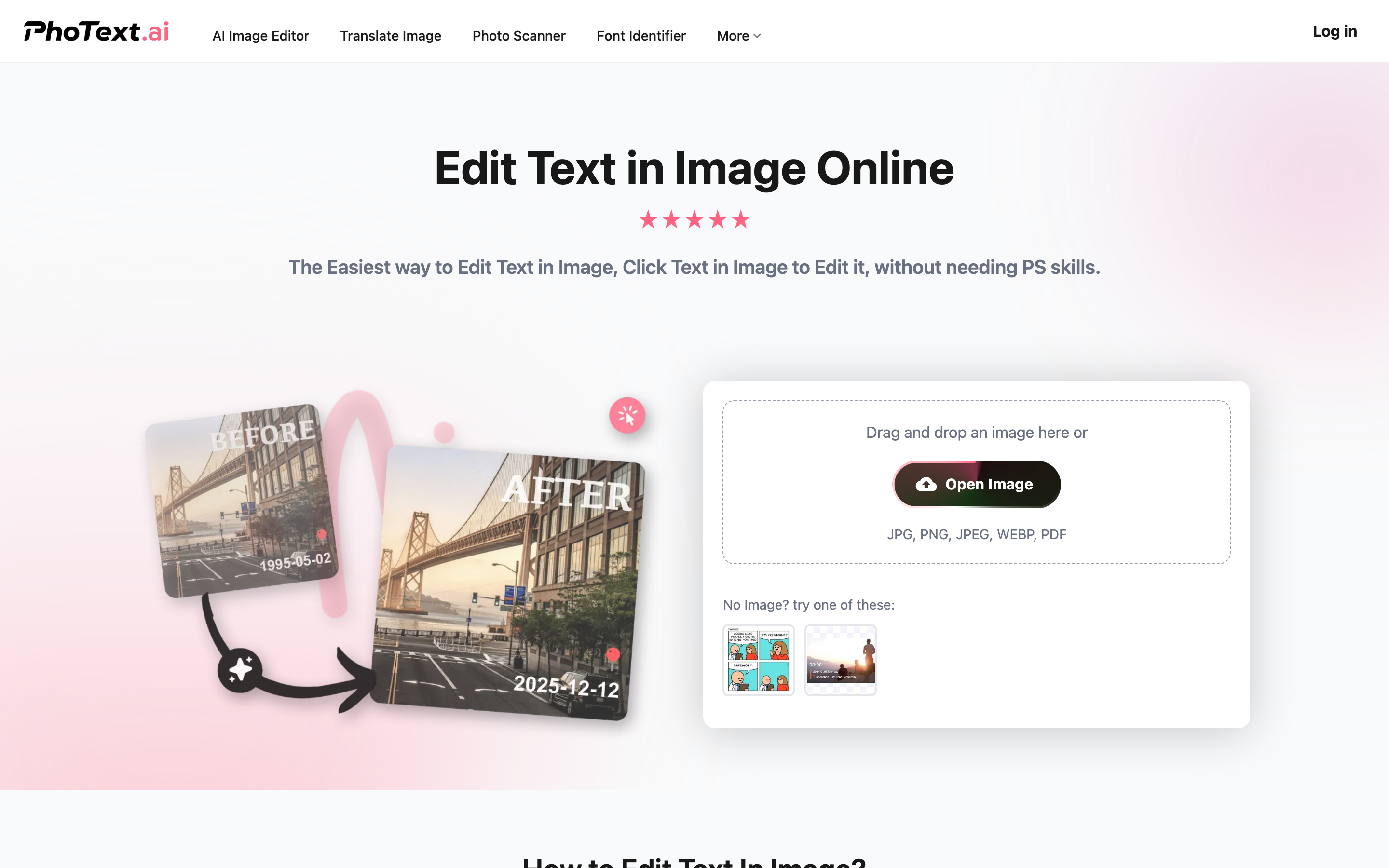
Open photext.ai and click Upload Image. PNG, JPEG, and WebP screenshots all work — straight from your clipboard manager or screenshot folder.
Step 2: Click the text you want to change
When the editor opens, PhoText has already run OCR on the image. Every piece of recognized text is clickable. Click the line you want to edit and the editing panel activates.
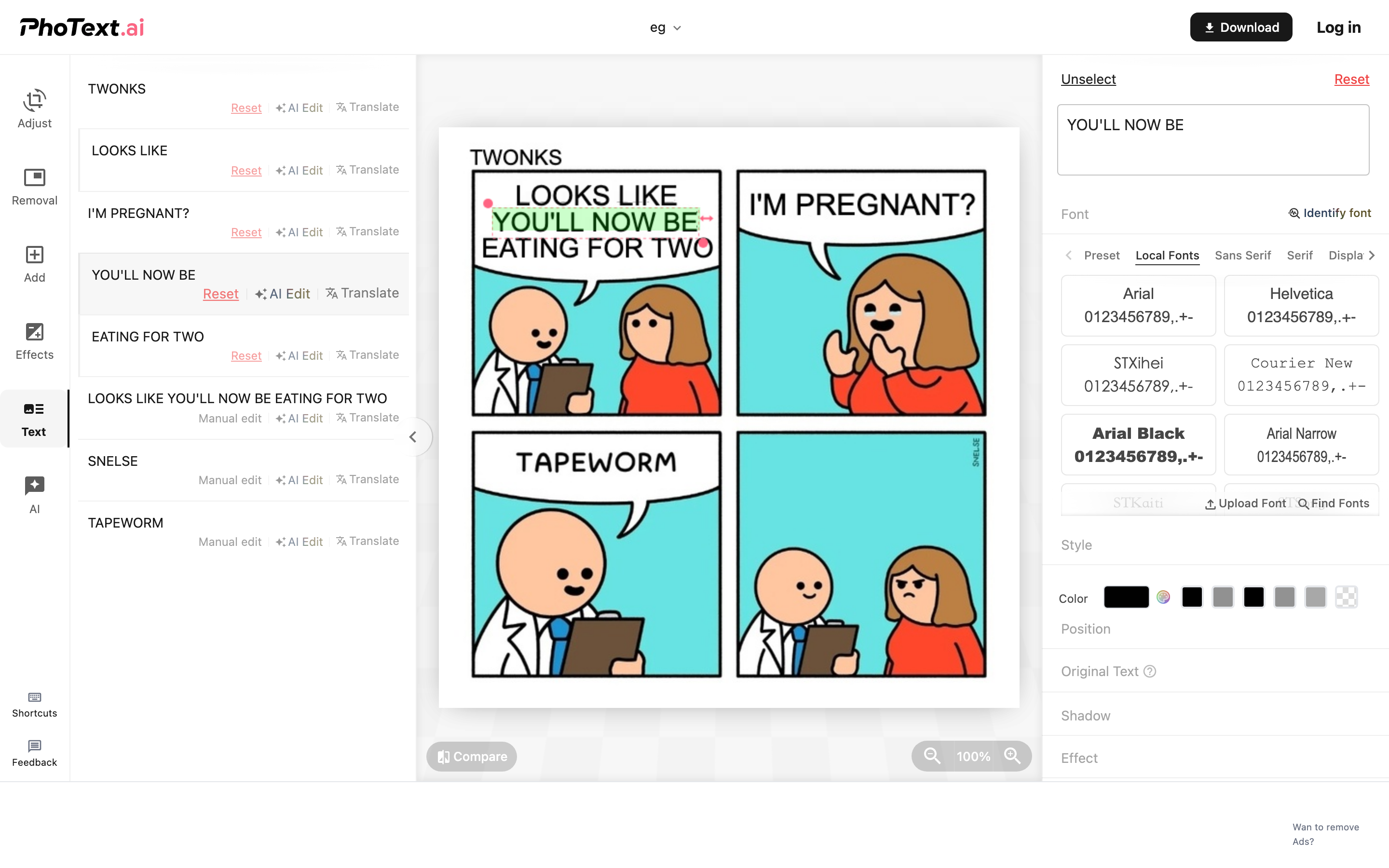
If the text you need isn't selected precisely (for example, you only want to change one word in a sentence), drag-select just that word on the canvas, or use the Info panel on the left to pick the exact text block.
Step 3: Type the new text
Replace the content in the text box. PhoText automatically:
- Matches the font — click "Identify Font" if you want to verify or fine-tune the match
- Matches the size and color picked up from the original pixels
- Erases the original text and rebuilds the background behind it
For screenshots with solid-color backgrounds, the default background restoration is pixel-perfect. If the text sits on a gradient or image, try the alternative background options in the panel.
Step 4: Export
Click Download at the top. The exported image keeps the original resolution — nobody can tell it was edited.
Try it now: Edit text in your screenshot free with PhoText — no signup needed for basic edits.
Tips for perfect screenshot edits
- Match the rendering: system UI text is usually a known font (Segoe UI on Windows, SF Pro on macOS/iOS, Roboto on Android). If the auto-match looks slightly off, search for these in the font list.
- Keep alignment: numbers in tables or chat bubbles are often right- or center-aligned. Use the position controls to keep the new text aligned the same way.
- Zoom in before editing small text: it's easier to select exactly the right characters.
FAQ
Can I edit text in a screenshot for free?
Yes. PhoText's manual text editing, font matching, and background restoration are free to use in the browser. Advanced AI conversational editing has a free trial quota.
Will the edit be detectable?
For typical screenshots with flat backgrounds, no — the background is restored seamlessly and the font is matched. Always make sure you have the right to modify the image and use edits ethically and legally.
Does it work on a phone?
Yes. PhoText runs in mobile browsers too — see the mobile editing flow at photext.ai/m/.
What formats are supported?
PNG, JPEG, and WebP for input. You can export as PNG or JPEG at original resolution.