
How to Change Text in an Image with the Same Font
To change text in an image with the same font, upload the image to PhoText, click the text, and use Identify Font in the editing panel. The AI analyzes the original letterforms and matches the closest font from a large font library, along with the size, weight, and color — so your replacement text blends in perfectly.
Font matching is the difference between an edit that looks professional and one that screams "photoshopped". Here's the full workflow.
Why font matching is the hard part
Erasing text is a solved problem. The hard part is that the human eye is extremely good at spotting font mismatches — a slightly wrong stroke weight or letter spacing makes the whole image feel off. Doing this manually means scrolling through thousands of fonts and comparing letter by letter.
PhoText's font identification does this comparison for you, the same way a font detective would: analyzing the shapes of the actual letters in your image.
Step 1: Upload and select the text
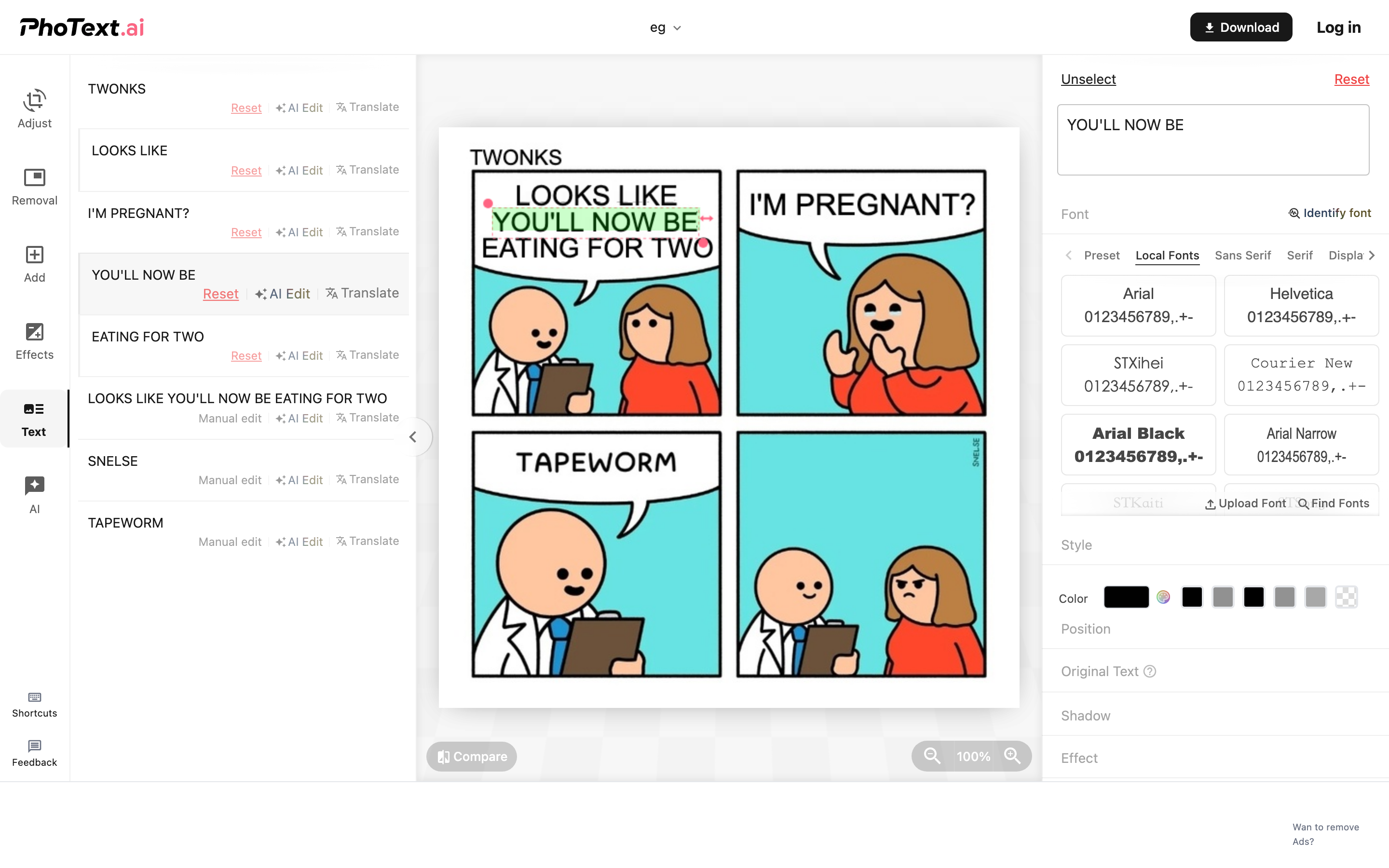
Open photext.ai, upload your image, and click the text you want to replace. The editing panel opens with the recognized text pre-filled.
Step 2: Identify the font
In the font section of the editing panel, click Identify Font. The AI compares the selected text against the font library and returns the closest matches, ranked. Pick the top match — or compare a few candidates by applying them and eyeballing the result against nearby original text.
Step 3: Fine-tune size, weight, and color
Even with the right font, three details sell the edit:
- Size — PhoText picks this up from the original text height; adjust by a pixel or two if needed
- Color — sampled from the original pixels; use the eyedropper on a clean part of an original letter if you want to verify
- Letter spacing and position — align your new text to the same baseline as the surrounding text
Step 4: Export and compare
Download the result and flip between the original and edited versions. If you can't find the edit yourself in two seconds, it's done.
Want to know what font an image uses without editing it? Try the standalone PhoText Font Finder — upload an image and get the font name.
FAQ
Can AI really identify any font?
It matches against a large library covering the most common commercial and free fonts. For rare custom lettering, it returns the closest visual match — usually close enough that the difference is invisible at normal viewing size.
What if the original text is stylized (shadow, outline, gradient)?
Match the base font first, then use the editor's text effects (shadow, stroke, gradient) to recreate the styling. For heavily stylized text, the conversational AI editing mode often produces better results since it transfers the style automatically.
Is the font free to use commercially?
All fonts distributed by the PhoText platform are free for commercial use, as is the content you produce with them.
Does this work for non-English text?
Yes — the OCR and font matching support all languages, including CJK fonts.